
Sharing compelling content via iMessage has gotten progressively easier. Whether it’s plain text, images, stickers, videos, special effects or emojis, we can communicate with friends, family and colleagues in ways we never before imagined and it keeps getting better. There is however one area of messaging that could use some improvement and that’s calendar events.
It’s not obvious how to send or share calendar events via iMessage so most of us revert to email which interrupts our messaging session. To solve the problem, we created a simple solution that allows you to create and send calendar events directly from iMessage. It’s called “Pingtumi for iMessage” and it’s available for free when you download and install the Pingtumi app (iPhone users only).
To get started, follow the steps below. We hope you enjoy using our iMessage extension. For additional messaging capabilities, check out the Pingtumi app and learn how you can improve communications with large groups via scheduled and real time push notifications.
1. Download Pingtumi from the App Store, locate and launch iMessage on your iPhone then tap + to the left of the text field.

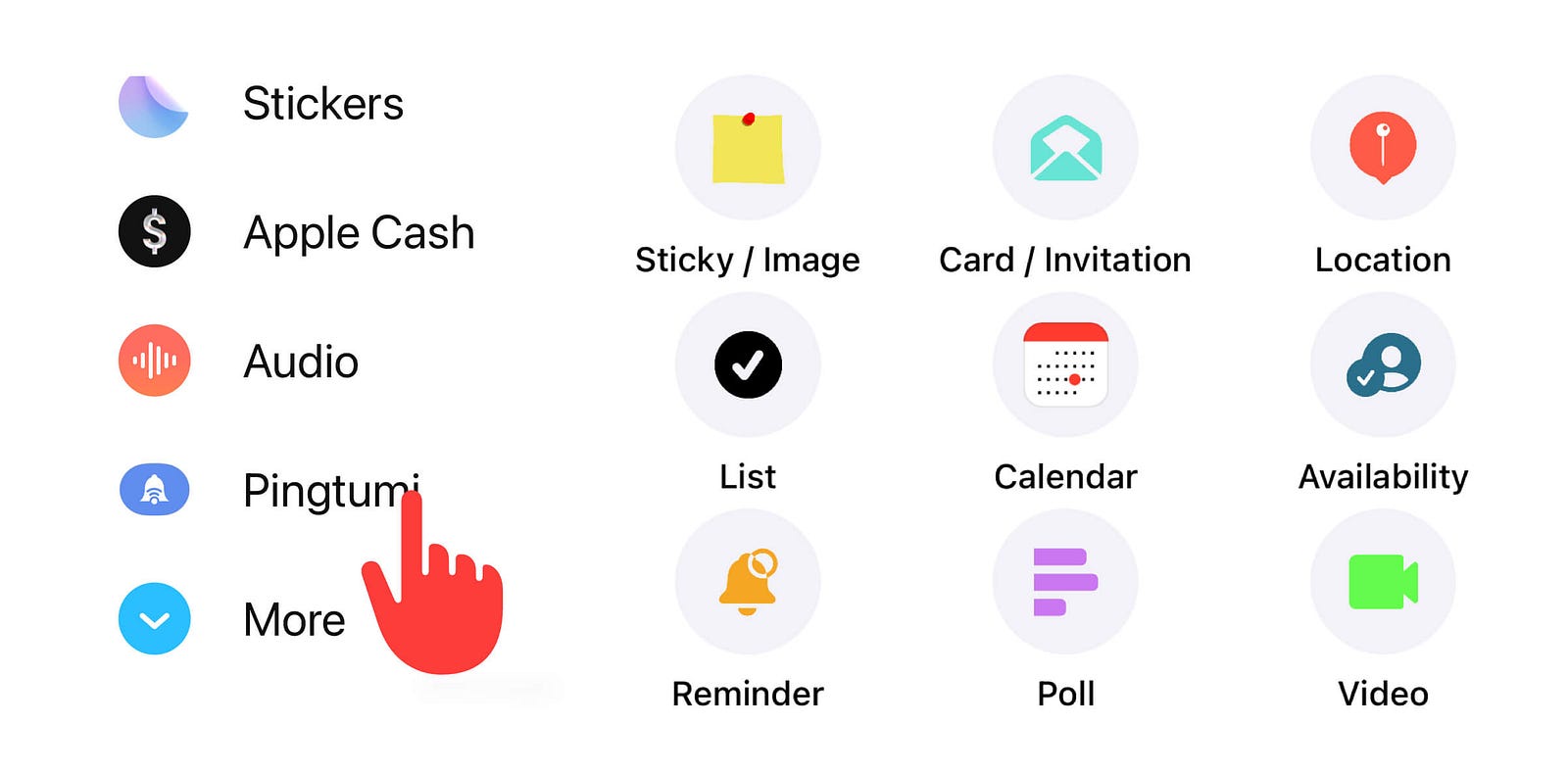
2. Scroll up or tap the More button. Tap and hold Pingtumi then slide up and off the screen.

3. Position Pingtumi above the More button. Tap to launch Pingtumi then select “Calendar”.
4. Add the event details and turn on or off the RSVP feature. Select “+” then tap “Send”. You can also customize your invite by adding a background image or color.

5. When your message is sent, it will appear in your iMessage chat stream. If RSVP is enabled, you can track the RSVP status across all recipients.

6. To view event notes, location, weblink or attendee RSVP status, simply tap one of the quick access buttons at the top of the calendar invite.

We think you’re really going to enjoy creating and sharing lists via iMessage. Please feel free to drop us a note at contact@pingtumi.com and let us know how we can make your messaging experience even better.
You can download Pingtumi from the app store here or visit our website
Also, feel free to check out our other iMessage apps
Pingtumi Greeting Cards for iPhone
Pingtumi Sticky Notes for iMessage
Pingtumi Shared List for iMessage
Pingtumi Reminders for iMessage
Pingtumi Availability for iMessage
Happy Pinging!
Originally published on Medium on July 1, 2022.