In 2024, Apple introduced Image Playground, a groundbreaking feature that lets users create and share AI-generated images directly from their iPhones via a dedicated app or iMessage. However, there’s a catch. This innovative tool is only available on the iPhone 15 Pro/Pro Max and iPhone 16. With the average iPhone replacement cycle spanning approximately four years, it could take some time before most Apple users can fully embrace this seamless AI-powered experience.
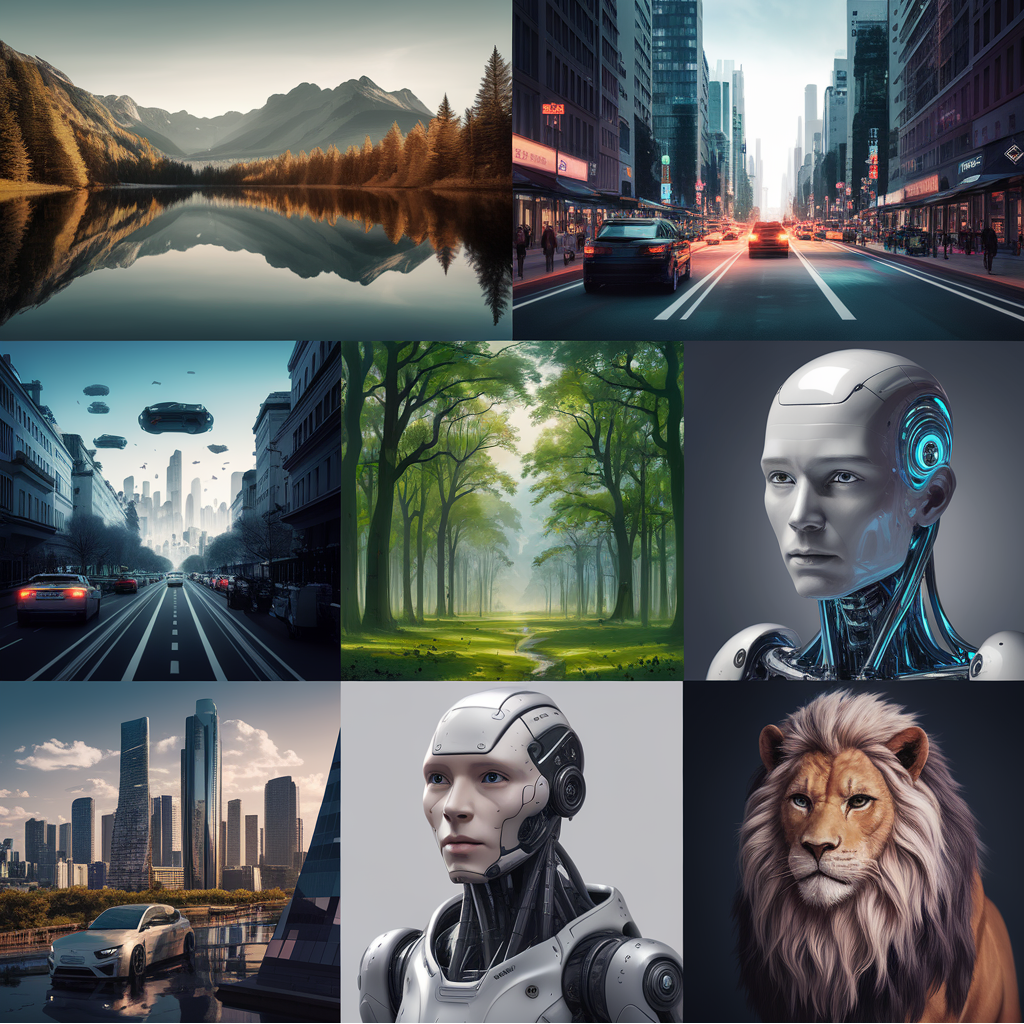
But don’t worry — there’s good news. Pingtumi makes AI image creation accessible to all iPhones providing you’re running iOS 17 or later. Unlike Image Playground which only offers animation and illustration image styles, Pingtumi enables you to create images of any artistic style including those that are photorealistic.
Here’s how to get started:
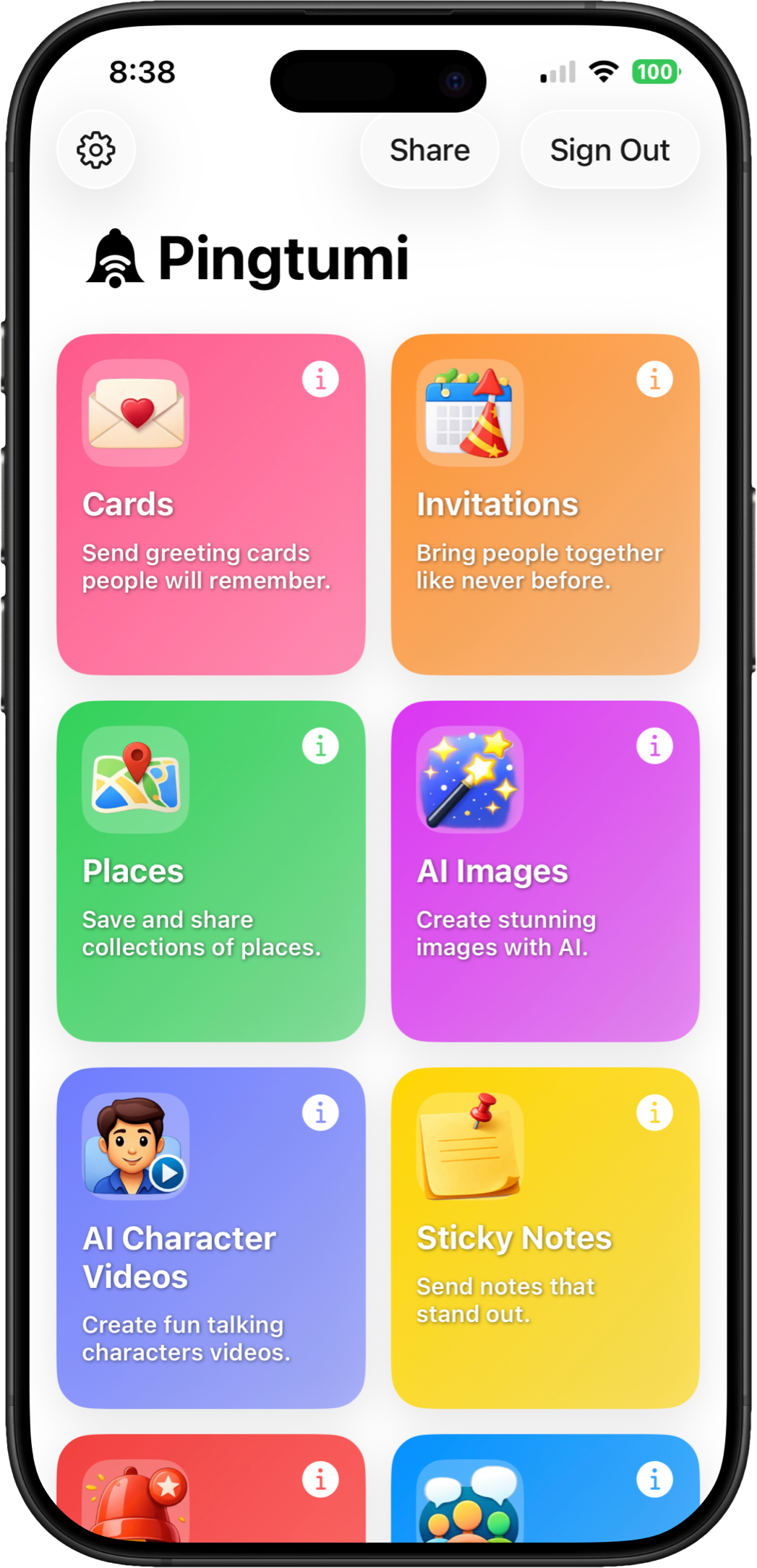
1. Install Pingtumi from the Apple App Store and Sign Up using Apple, Google or email. Pingtumi requires that you have iOS 17 or later installed. Once you’re in, tap AI Images.
Before creating an image, you will need to enter a prompt describing the type of image you would like to create. The more descriptive your prompt the better. Below are some tips.
Be Specific
Clearly define the subject (e.g., “a golden retriever”), environment (e.g., “in a sunflower field”), and details (e.g., “wearing a red bandana”)
Avoid overly vague terms like “beautiful” or “nice.” Instead, describe what makes it beautiful (e.g., “vivid sunset with pink and orange hues”)
Use Adjectives and Descriptive Language
Include adjectives to shape the mood, style, and details. For example:
Mood: “dreamy,” “dark,” “vibrant.”
Style: “minimalist,” “realistic,” “abstract.”
Details: “intricate patterns,” “soft textures,” “sparkling reflections.”
Specify Artistic Styles
Mention art movements, techniques, or mediums, such as:
“In the style of Impressionism.”
“Rendered in watercolor.”
“Photo realistic”
“An illustration”
“3D digital art with photorealistic textures.”
Include Context
Provide a setting or context to ground the image:
“A futuristic cityscape at night with neon lights.”
“A cozy living room with a roaring fireplace and a sleeping cat.”
Enclose text in “quotations”
If you would like to add text to your image, be sure to enclose your text in quotations. For example. A birthday cake with a the words “Happy Birthday Jill” written on it. For the best results, add text near the beginning of your prompt.
Keep it Concise but Complete
Avoid long, complex sentences. Instead, use short phrases with all the necessary elements.
Example Prompt: A majestic white tiger in a lush green jungle, dappled with sunlight, in a realistic style. Underneath is the text “White Tiger”.
7. Your image will be generated in approximately 20 seconds. When completed, save your image to your photo library then send it via iMessage. Email or social media.
Give it a try and let us know what you think at contact@pingtumi.com. We’ve added a few complimentary AI Image credits to get you started. To renew your image credits, go to the main Pingtumi app then tap the Settings tab on the far right.
Good luck!
Originally published on Medium on January 28, 2025.